Practical guide · PocketMirror
How to add a mirror to your iPhone Lock Screen
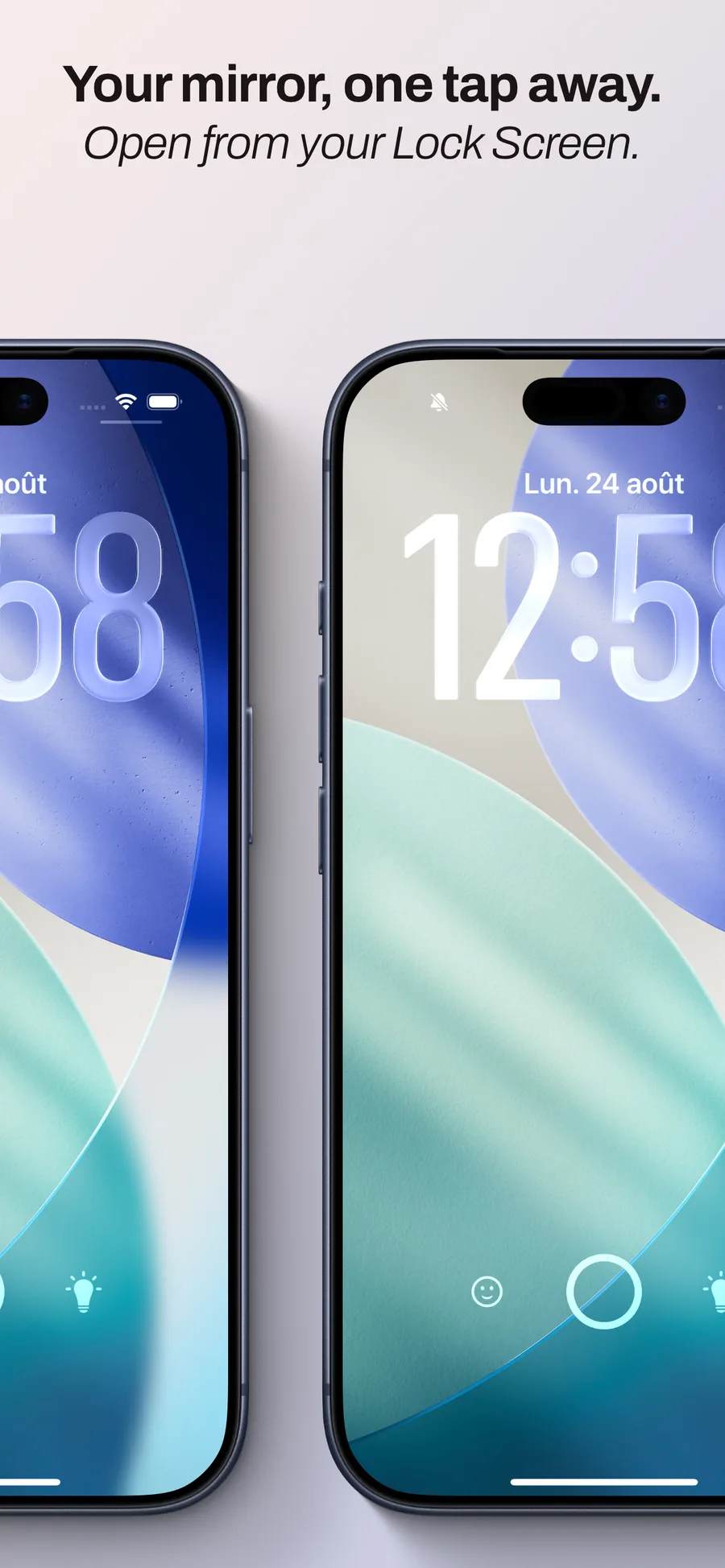
Sometimes all you need is a shortcut to your mirror. PocketMirror has two free Lock Screen widgets that open the app with or without lighting. Here is how to choose one and add it.
Choose your widget
The mirror widget opens PocketMirror for a quick check. The mirror-with-light widget opens it with contour lighting, useful if you often need the app in dim places.
Both widgets are free. They open the app; the widget itself does not show a live camera preview.
1. Customize the Lock Screen
Touch and hold your iPhone Lock Screen until Customize appears. Tap it, then select the Lock Screen.
2. Add PocketMirror
Tap the widget area or Add Widgets and find PocketMirror. Select the mirror or mirror-with-light widget and add it to the available area.
If the area is full, remove an existing widget with the remove button to make room.
3. Save and try it
Close the widget picker and tap Done to save. Tap the PocketMirror widget on your Lock Screen to open the mirror.
If PocketMirror is missing from the list
Check that PocketMirror is installed on this iPhone. Open the app, then return to Lock Screen customization and try again.
If you are still stuck, see Apple’s widget instructions below or contact PocketMirror support with your iOS version and a description of what you see.
Learn more: Add and edit widgets on your iPhone — Apple Support